



In this article, I will discuss the Best Ways To Fix Outlook Not Sending Emails. If you are struggling with emails being stuck in the Outbox or not being sent, there are a number of things you can try.
- Key Point & Best Ways To Fix Outlook Not Sending Emails List
- 1.Resend the Email
- Resend the Email Features
- 2.Reduce Attachment Size
- Reduce Attachment Size Features
- 3.Turn Off Offline Mode
- Turn Off Offline Mode Features
- 4.Check Your Internet Connection
- Check Your Internet Connection Features
- 5.Repair Your Outlook Profile
- Repair Your Outlook Profile Features
- 6.Clear the RoamCache Folder
- Clear the RoamCache Folder Features
- 7.Define Send/Receive Settings
- Define Send/Receive Settings Features
- Conclusion
Ensuring that you are connected to the Internet and repairing your Outlook profile are effective ways to fix the more simple sending issues in Microsoft Outlook.
Key Point & Best Ways To Fix Outlook Not Sending Emails List
| Key Point | Description |
|---|---|
| Resend the Email | Try resending the email from the Outbox in case of a temporary issue. |
| Reduce Attachment Size | Large attachments can block emails; compress or remove to enable sending. |
| Turn Off Offline Mode | Ensure Outlook is online to send and receive emails. |
| Check Your Internet Connection | A stable internet connection is essential for Outlook to function properly. |
| Repair Your Outlook Profile | Corrupted profiles can disrupt sending; use the repair tool in Account Settings. |
| Clear the RoamCache Folder | Deleting RoamCache can fix autocomplete or sending issues. |
| Define Send/Receive Settings | Customize these settings to ensure timely synchronization of your mailbox. |
1.Resend the Email
Resending an email is one of the most effective ways to resolve Outlook issues since it is fixated upon addresses temporary issues within the Outbox queue. Reopening and resending the email tends to initiate the sending process and refresh any underlying errors that may exist within the system.
This strategy solves the problem in a matter of seconds, does not require any icing on the cake technical expertise, and more often than not does the trick without requiring any alterations to configurations. This method guarantees users immediate retry attempts for sending the email whilst preserving all content and attachments intact.
Resend the Email Features
- Quick Retry Option: Go to Outbox, and click on the unsent message. Then click “Send” once more.
- No Data Loss: You do not have to recompose the email if you have to start it all from scratch.
- Helpful for Temporary Glitches: Helps when the problem was a fleeting software or network issue.
2.Reduce Attachment Size
Fixing Outlook not sending emails by reducing attachment size is a smart solution since oversized files may surpass the server limit, thus blocking delivery. Most mail servers are set up with strict size limits, and even a tiny exceedance can lead to emails being stuck in the Outbox.

Using file compression software, or cloud services like OneDrive or Google Drive can greatly reduce server load while ensuring successful email transmission. This method greatly eliminates failure and improves service reliability, which is significant for users who need to share large files often.
Reduce Attachment Size Features
- Improves Deliverability: Emails with large attachments can be blocked by servers due to their size.
- Cuts Down Time: Small files upload and are sent quicker.
- Error Prevention: Avert errors like timeouts or “Message Too Large” from being triggered.
3.Turn Off Offline Mode
One of the best options to troubleshoot Outlook’s inability to send emails is to turn off Offline Mode, as it reconnects Outlook to the mail server. When Offline Mode is active, Outlook freezes all email operations; any emails waiting to be sent, will be stuck in the Outbox.

This mode is usually engaged by mistake – commonly during troubleshooting or when there are network problems – which creates a lot of confusion. By changing to Online Mode, Outlook will automatically begin communication again, and emails can be sent immediately with no complicated fixes or even restarts needed.
Turn Off Offline Mode Features
- Fixes Greyed-Out Send Button: The server cannot be reached when Offline Mode is on.
- Active Connection Guaranteed: Outlook needs to be online to send and receive emails.
- Easy To Change: The “Send/Receive” tab has simple buttons to toggle offline mode on and off.
4.Check Your Internet Connection
In troubleshooting the issue of Outlook not sending emails, verifying your internet connection is a crucial and effective first step since Outlook depends entirely on a stable network for syncing with email servers. In cases where your connection is weak, unstable, or lost entirely, any emails you attempt to send will be perpetually queued in the Outbox.
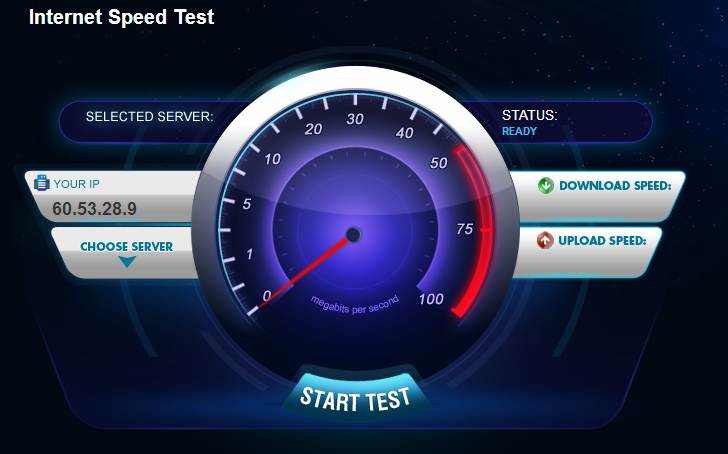
A swift check of the internet, such as restarting your router or switching to a different one, resolves this right away for good. This approach is straightforward and does not require any adjustments to Outlook’s settings or configurations.
Check Your Internet Connection Features
- Improves Outdated Server Communication: Microsoft Outlook needs internet connection for communicating with mail servers.
- Avoids Sync Delays: Poor connections can delay or fail outgoing mail.
- Confirm your Internet Connection: Open a browser or perform a speed test to verify your internet is working.
5.Repair Your Outlook Profile
Fixing an Outlook profile is one of the best methods to resolve email sending problems since profile corruption may happen in the background and disrupt interaction with the mail server. A damaged profile may result in email stalling or failing due to outdated software configurations or updates.
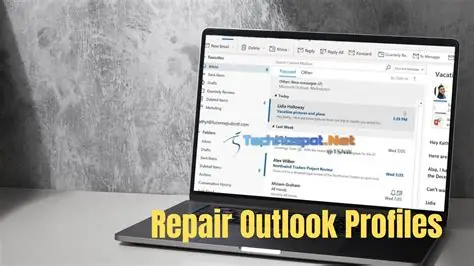
The repair tool that comes with Outlook performs a scan to identify and fix errors without any data loss. This approach restores the trust in Outlook setup which addresses deeply-rooted sending issues that simple solutions cannot fix.
Repair Your Outlook Profile Features
- Prevents Outgoing Email Blocks: Repairing Outlook profiles fixes corrupt profiles which block email outflows and create intermittent errors.
- Preserves User Data: Most methods of repair keep the configuration and data intact.
- Profile Repair is Simple: It can be accessed through “Control Panel > Mail > Profiles” for repairs.
6.Clear the RoamCache Folder
Clearing the RoamCache folder is an effective method for fixing the issue of Outlook not sending emails as it eliminates obsolete or damaged autocomplete data that has the potential to hinder message delivery. This cache holds frequently contacted emails and settings.

If this cache is damaged, it can either block emails from being sent or cause them to get stuck in the outbox. Removing the RoamCache folder allows Outlook to rebuild the cache from scratch which resolves many underlying problems that routine fixes do not address.
Clear the RoamCache Folder Features
- Cache Repair: The RoamCache folder is responsible for storing auto-complete and other hidden form data which, when corrupted, lead to errors.
- Improves performance: Deleting these folders improves the way outlook handles its cache.
- No Harm in Deleting: These folders are recreated automatically when Outlook restarts.
7.Define Send/Receive Settings
Configuring Send/Receive settings is an effective way to resolve Outlook issues not sending emails since it allows users full control on the processes of syncing emails with the server and when they are sent. Incorrectly set send/recieve time gaps could result in sent emails being queued for a long period.

Customizing these settings ensures that Outlook does immediate syncs or adheres to a specific schedule so that unnecessary waiting periods are avoided. This is particularly helpful in fast-paced workplaces where every second counts in productivity for timely correspondence.
Define Send/Receive Settings Features
- Customizes Sync Frequency: Defines how frequently and in what manner different accounts of Outlook are synced.
- Manual Trigger to Send/Receive: Users may manually force content to be sent.
- Email Sending Delay Solutions: Useful where emails are delayed in the outbox as a result of poorly set intervals for sync.
Conclusion
To fix Outlook not sending emails, a blend of basic troubleshooting and systematic changes is needed. Every technique, from resending blocked emails and reducing their size to repairing Outlook profiles and clearing cache data, addressing particular issues.
Tailoring send/receive preferences together with ensuring a strong internet connection further improves performance. Implementing these strategies will ensure Outlook users are able to rapidly regain functionality and enjoy seamless email communications without the need for tedious outside help.